Select File → Import → VRM(.vrm) from the menu to display the VRM import dialog. Select a VRM file and click the Open button to load the VRM file into the scene.
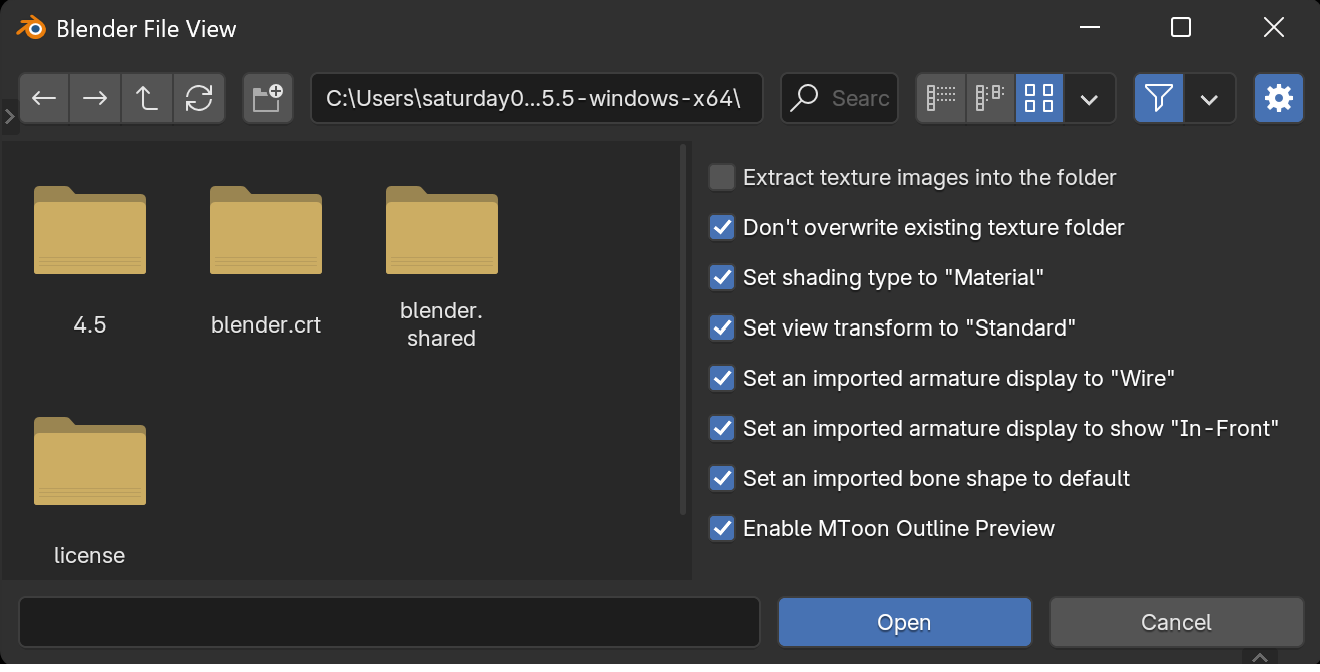
Options
✅ Extract texture images into the folder
Creates a folder in the same location as the VRM file and extracts the textures contained within the VRM file. If unchecked, textures will be embedded in the currently edited .blend file.
✅ Don't overwrite existing texture folder
When creating a folder for texture images, if a folder already exists, a sequential number will be appended to prevent overwriting the folder.
✅ Set shading type to "Material"
After loading the VRM file, sets the 3D viewport shading to Material Preview. While this setting may not be particularly meaningful for users familiar with Blender, it's intended to help newcomers get excited by seeing a display that closely matches how it appears on other platforms immediately after import.
✅ Set view transform to "Standard"
After loading the VRM file, sets the color management view transform to "Standard". VRM files are not compatible with Blender's default view transform settings and often appear slightly dull. Setting the view transform to "Standard" solves this issue.
✅ Set an imported armature display to "Wire"
After loading the VRM file, sets the armature viewport display to "Wire".
✅ Set an imported armature display to show "In-Front"
After loading the VRM file, displays the armature in front of other objects.
✅ Set an imported bone shape to default
The official importer for the glTF format, which is the parent specification of VRM, sometimes automatically changes the bone shape display to ICO spheres or similar. However, as the addon author, I find this behavior unnatural for VRM files that primarily contain humanoid armatures. This option suppresses that behavior and sets bones to the default octahedral shape.
✅ Enable MToon Outline Preview
"MToon", the toon shader included in VRM, includes an anime-style outline rendering feature. Since this is implemented using the inverted hull method, enabling it may increase the vertex count displayed in the statistics overlay and increase viewport performance load. Disabling this option resolves these issues.