Select File → Export → VRM(.vrm) from the menu to display the VRM export dialog. Press the Save button to export the currently edited armature as a VRM file.
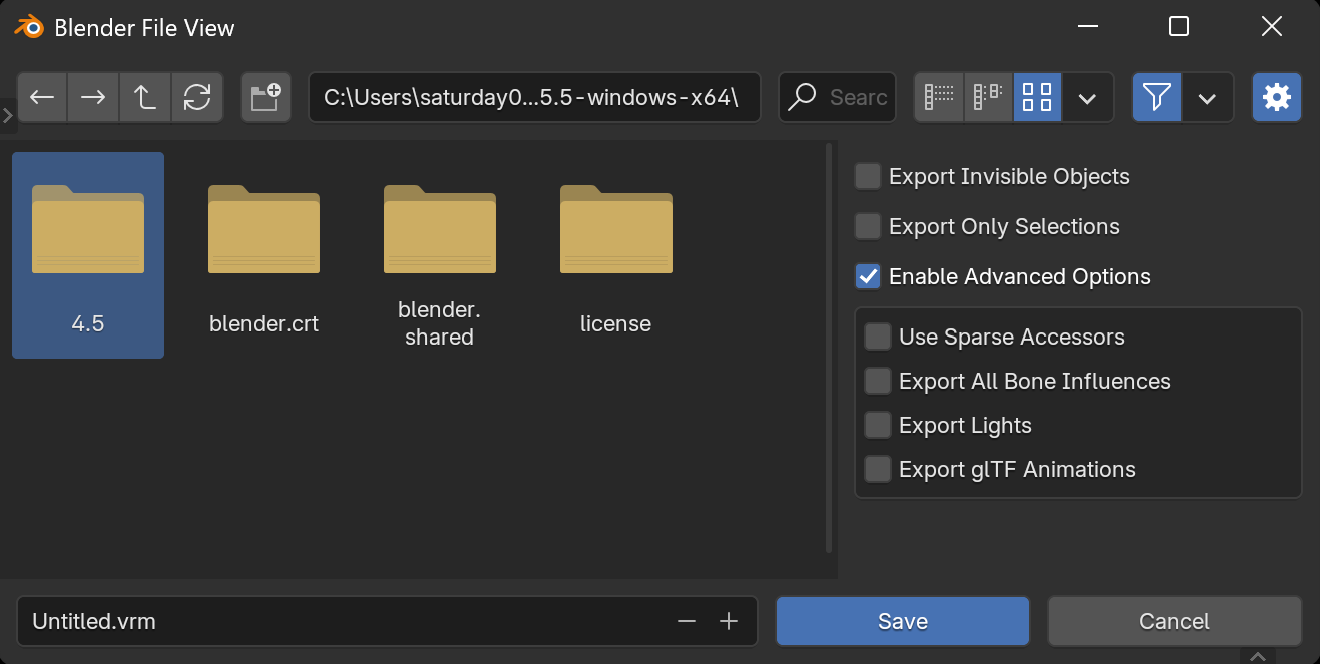
✅ Export Invisible Objects
Include invisible objects during export. As an exception, the target armature for export will be exported even if it is invisible.
✅ Export Only Selections
Export only the selected objects.
✅ Enable Advanced Options
Enable the [Advanced Options] items. Please note that changing these items may result in a loss of compatibility of the VRM file between applications.
✅ [Advanced Options] [VRM 1.0 only] Use Sparse Accessors
Use sparse accessors when exporting shape keys. This may reduce file size for models using shape keys, but VRM files will become unreadable in older applications using UniVRM 0.115.0 or earlier.
✅ [Advanced Options] [VRM 1.0 only] Export All Bone Influences
Export all bone weights. By default, the number of exported weights is limited to 4 for display compatibility. According to the VRM specification, up to 255 bone weights can be assigned to a single vertex. However, most applications that handle VRM only interpret up to 4 weights per vertex. This removes that limitation and exports all bone weights. Please use this feature with caution, setting weights carefully, or only when the export results will be used in specific applications, as meshes may become significantly distorted in some applications.
✅ [Advanced Options] [VRM 1.0 only] Export Lights
Include light objects in the export. There is currently no consensus on how lights should be handled in VRM, so the results are unpredictable. Please use this feature only when using applications that can handle lights.
✅ [Advanced Options] [VRM 1.0 only] Export glTF Animations
Export glTF animations. By default, glTF animations are not exported. Since VRM files are designed with the assumption that motion retargeting will be applied, glTF animations often cannot be directly applied as-is. Please consider using VRM Animation instead.