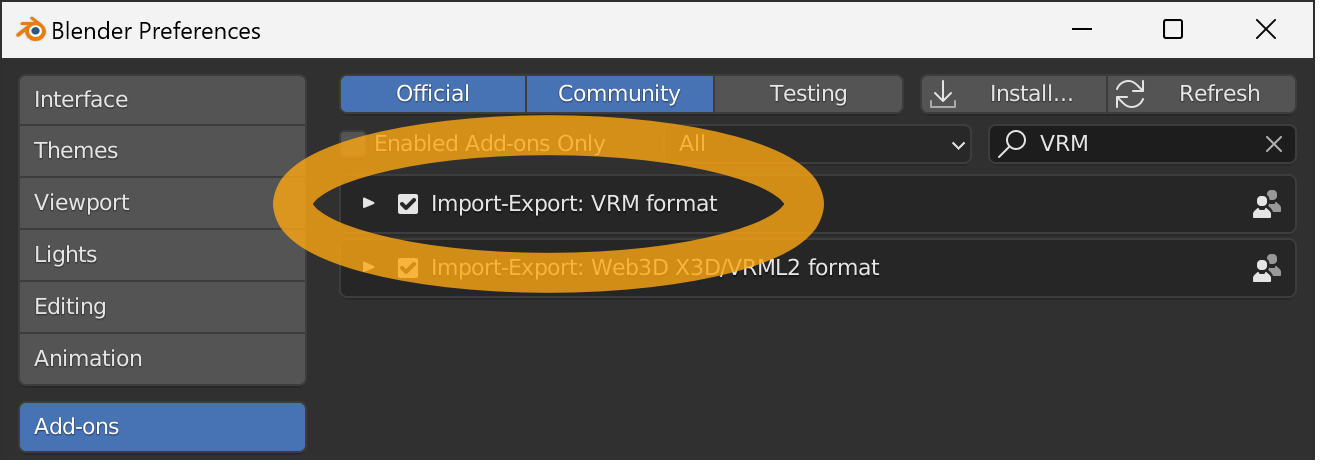
This tutorial explains how to install VRM Add-on for Blender.
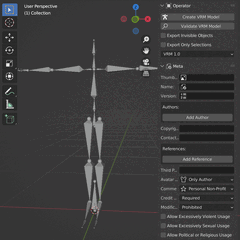
The steps vary depending on your Blender version and where you download from. Choose one of the following three methods.
- Blender 4.2 or later, download from Blender Preferences
- Blender 4.2 or later, download from a web browser
- Blender 2.93 to 4.1
Blender 4.2 or later, download from Blender Preferences
In Blender 4.2 and later, you can download and install from the Preferences window. When updates are available, you can also update by clicking a button in the Preferences window.
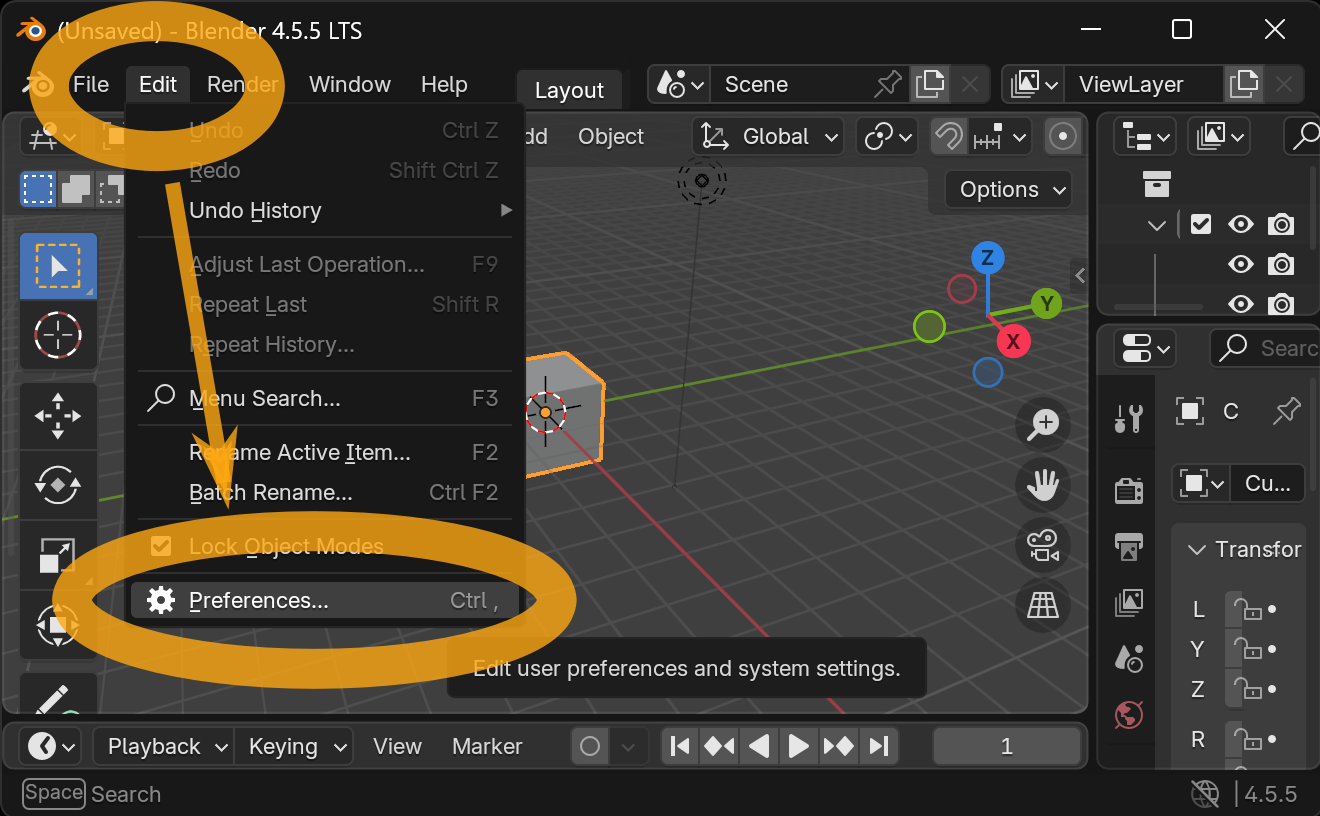
Start Blender, then select Edit → Preferences from the menu.
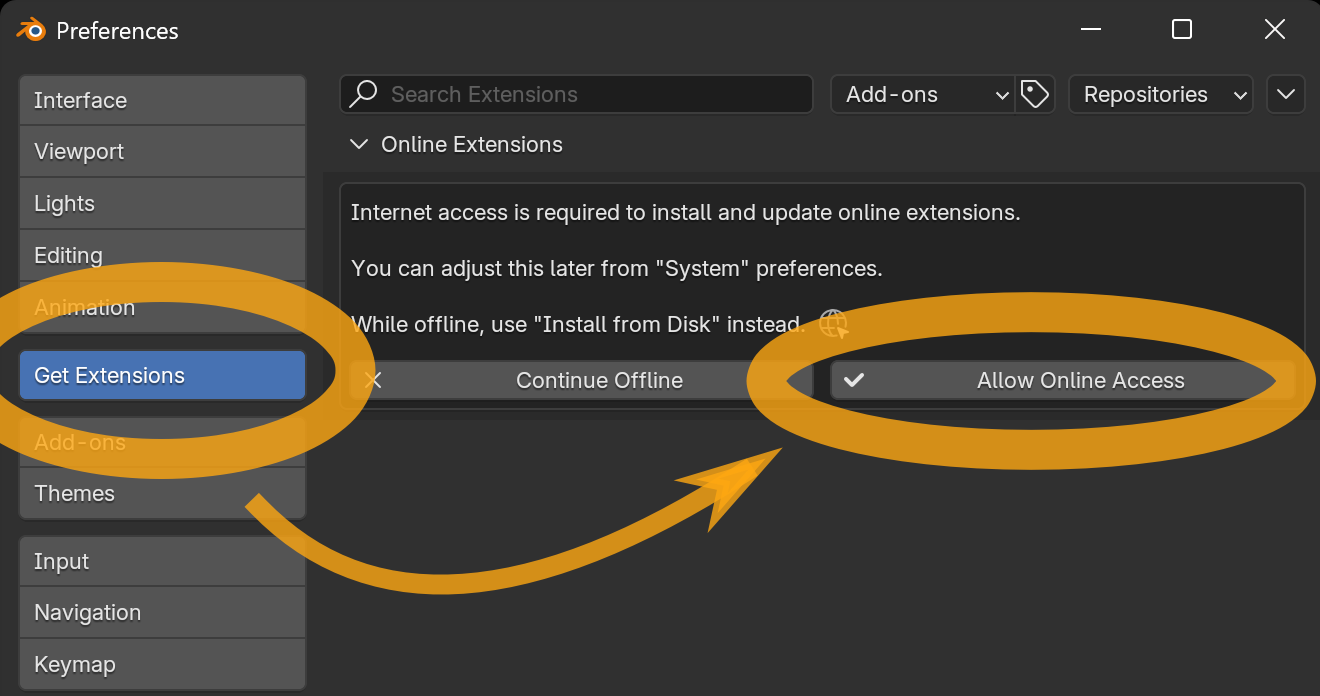
In the Preferences window, select Get Extensions from the left menu.
If you see a message saying that installing or updating online extensions requires internet access, click Allow Online Access.
TIP
Clicking Allow Online Access lets Blender communicate with the internet. If you do not want to allow this, install via Blender 4.2 or later, download from a web browser.
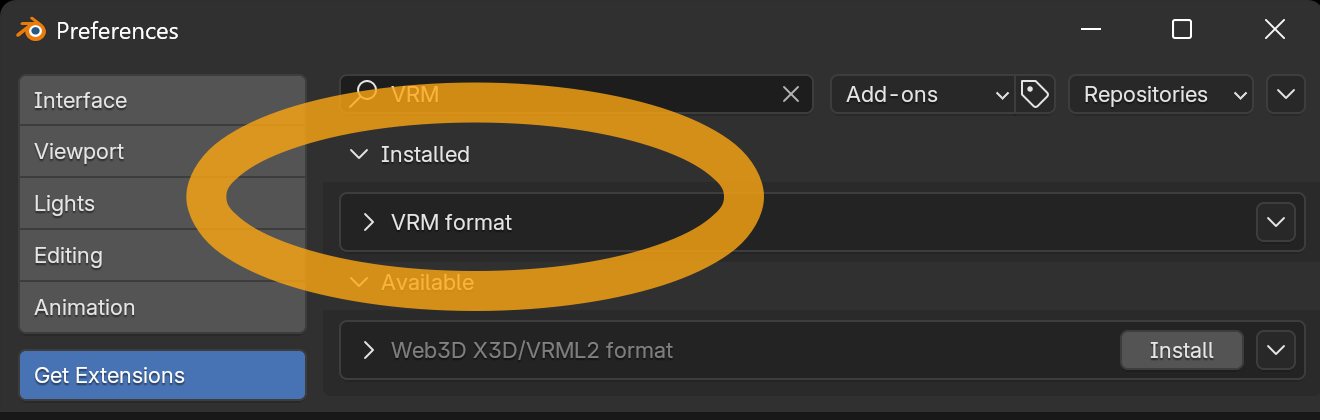
After a moment, the "Available" list appears. Find the VRM format entry. If the list is long, you can filter it by typing VRM into the search box at the top.
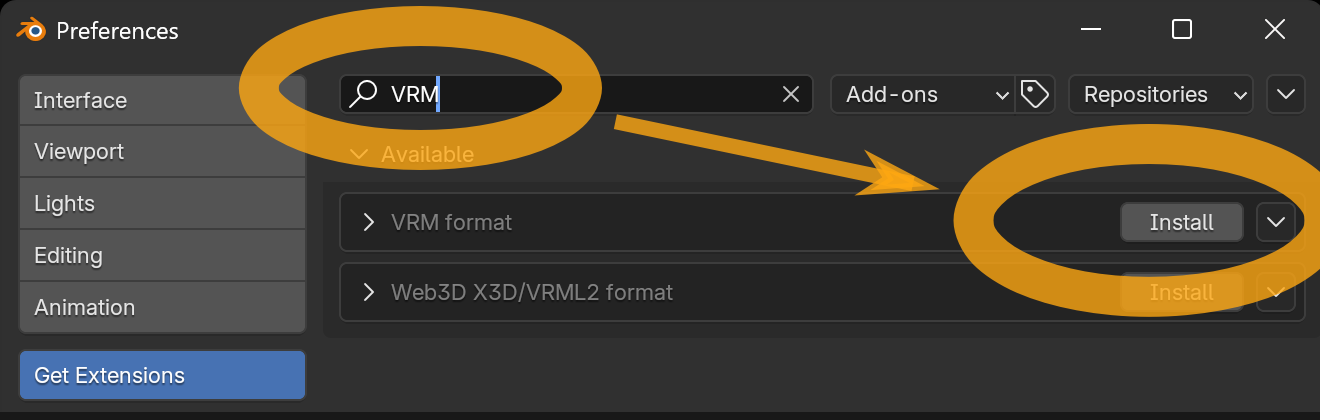
Click Install to complete the installation.
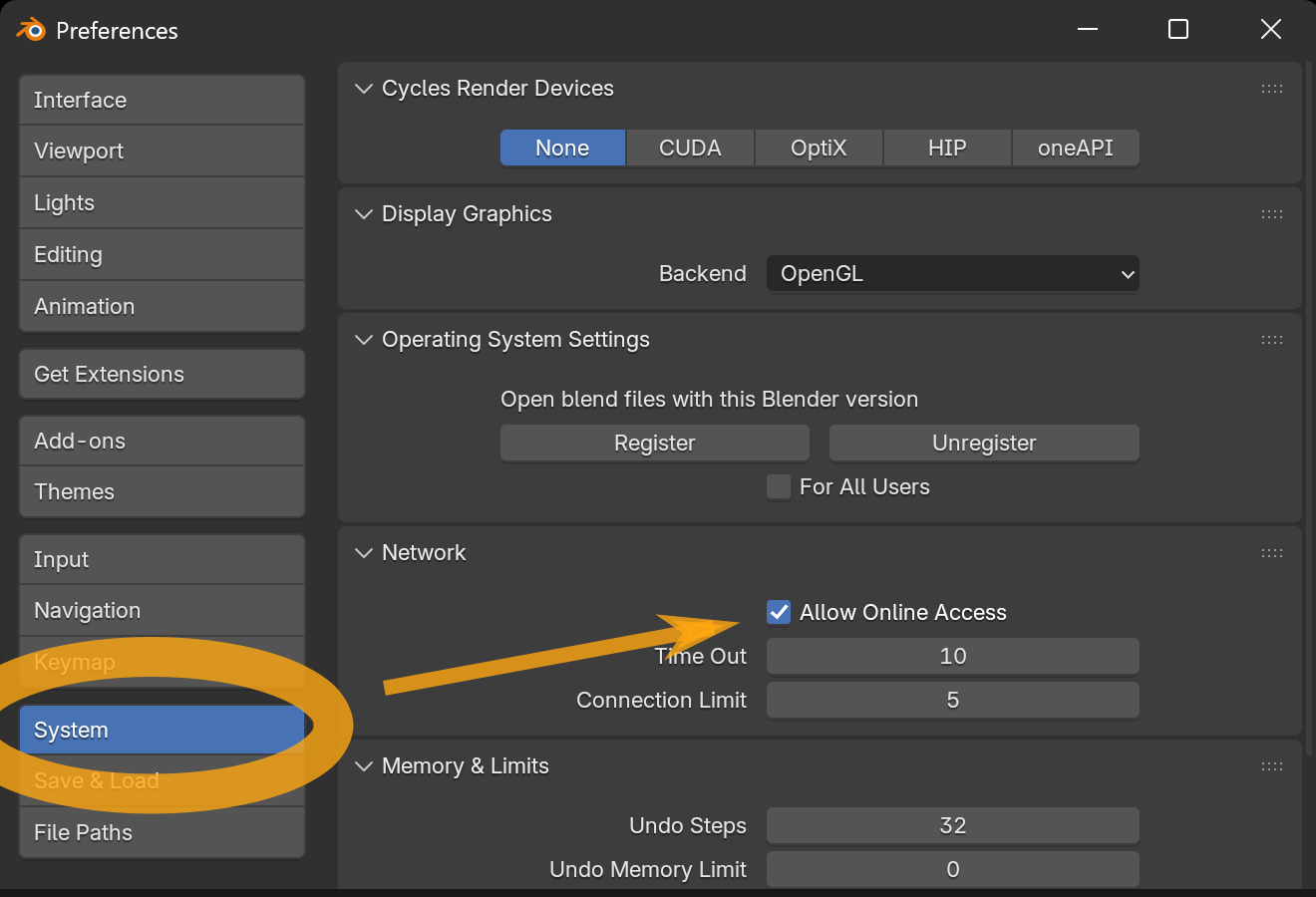
If nothing appears in the list, online access may be disabled. In the Preferences window, select System, turn on Allow Online Access, then select Get Extensions again.
If it still does not appear, check your internet access. Blender’s online services might also be down. You can check the status at https://status.blender.org/status/public.
Blender 4.2 or later, download from a web browser
If you want to keep Blender’s online access disabled, download the add-on file in a web browser and add it from the Preferences window. First, open the Blender Extensions Platform.
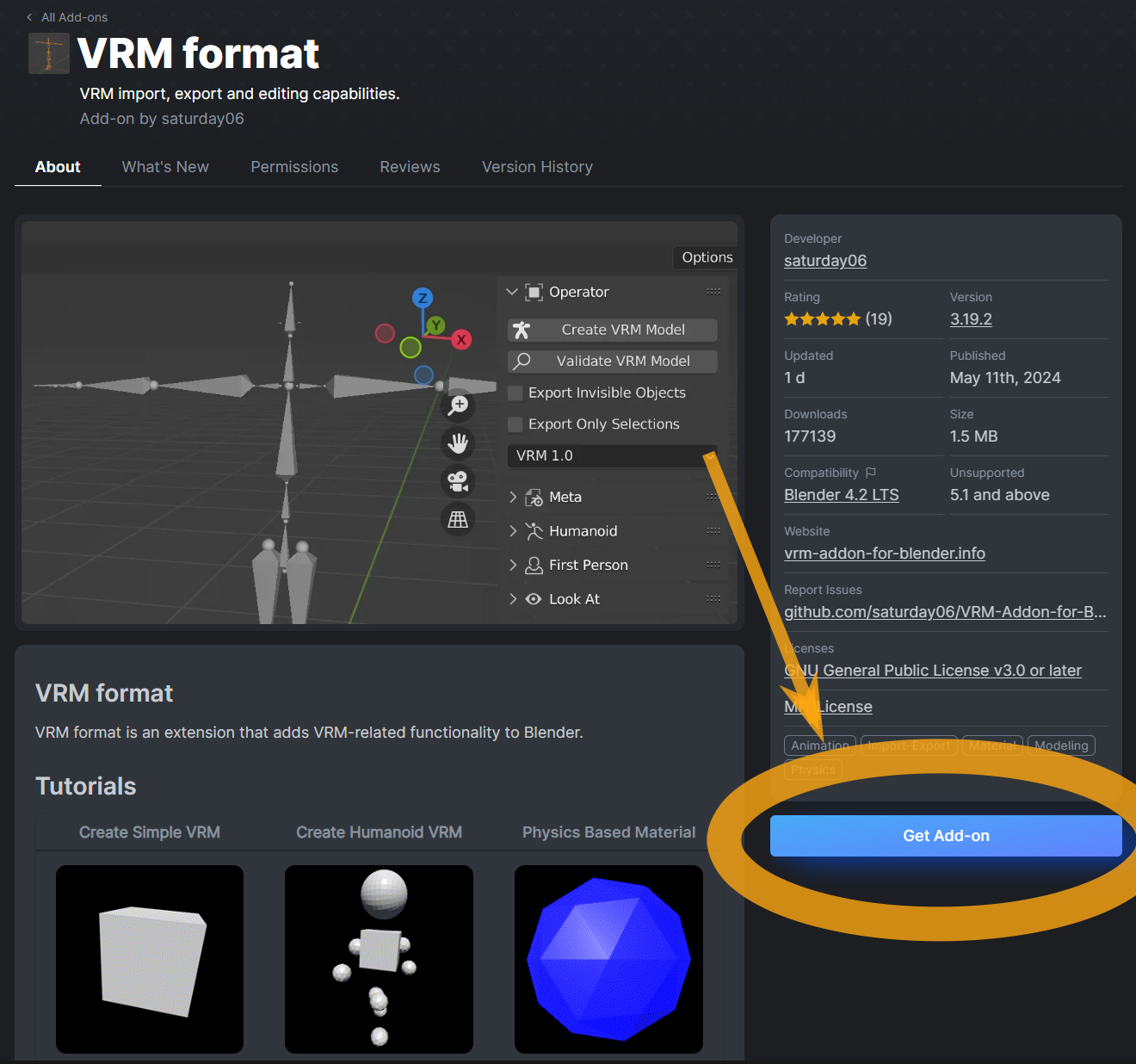
Click the Get Add-on button.
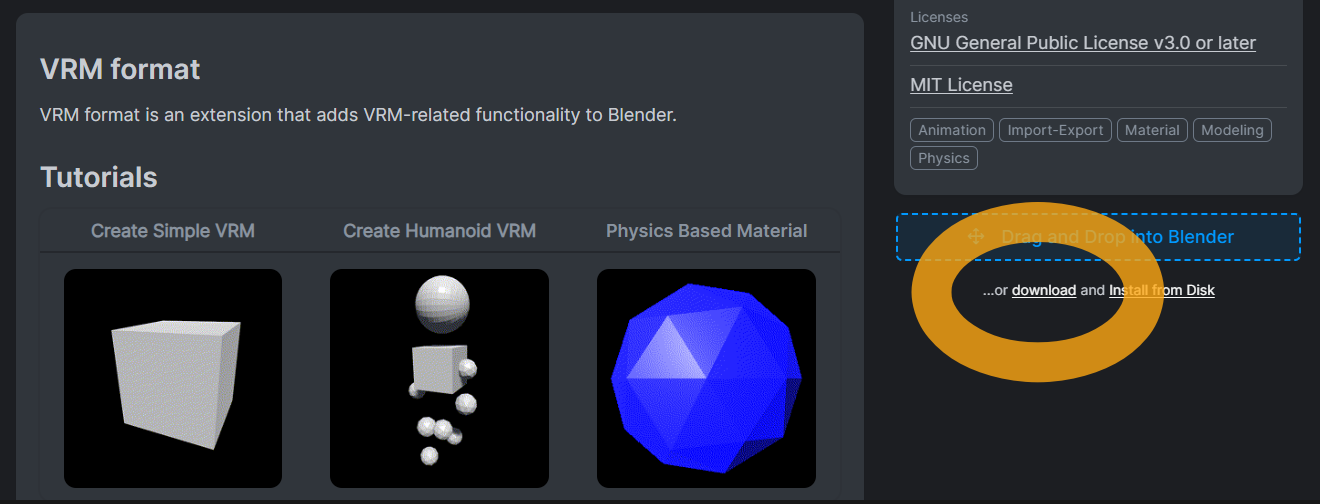
A download link appears. Click it to download the add-on file.
TIP
The downloaded add-on file is a ZIP file, but please do not unzip it, as the unzipped data will not function as an add-on.
INFO
You can also install by following the Drag and Drop into Blender instruction on the website, but that requires allowing Blender online access.
Next, start Blender and select Edit → Preferences from the menu.
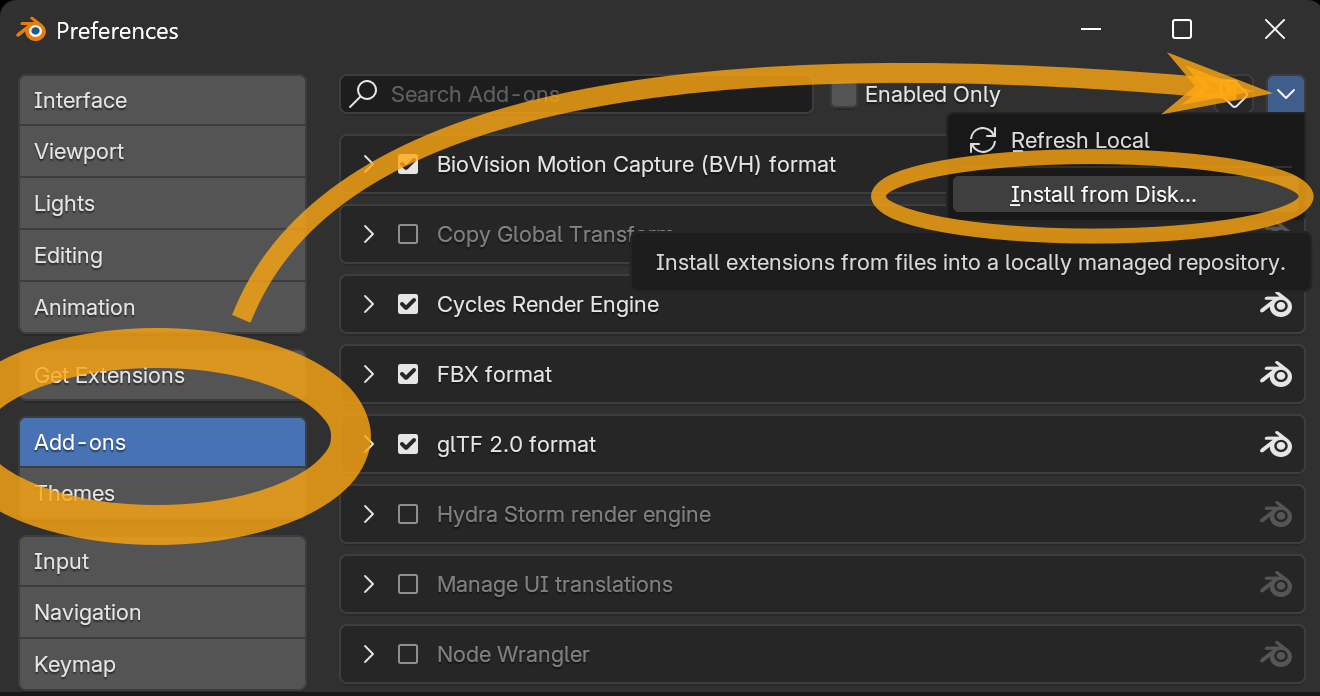
In the Preferences window, select Add-ons from the left menu, then click the ˅ button in the top right and choose Install from Disk from the menu.
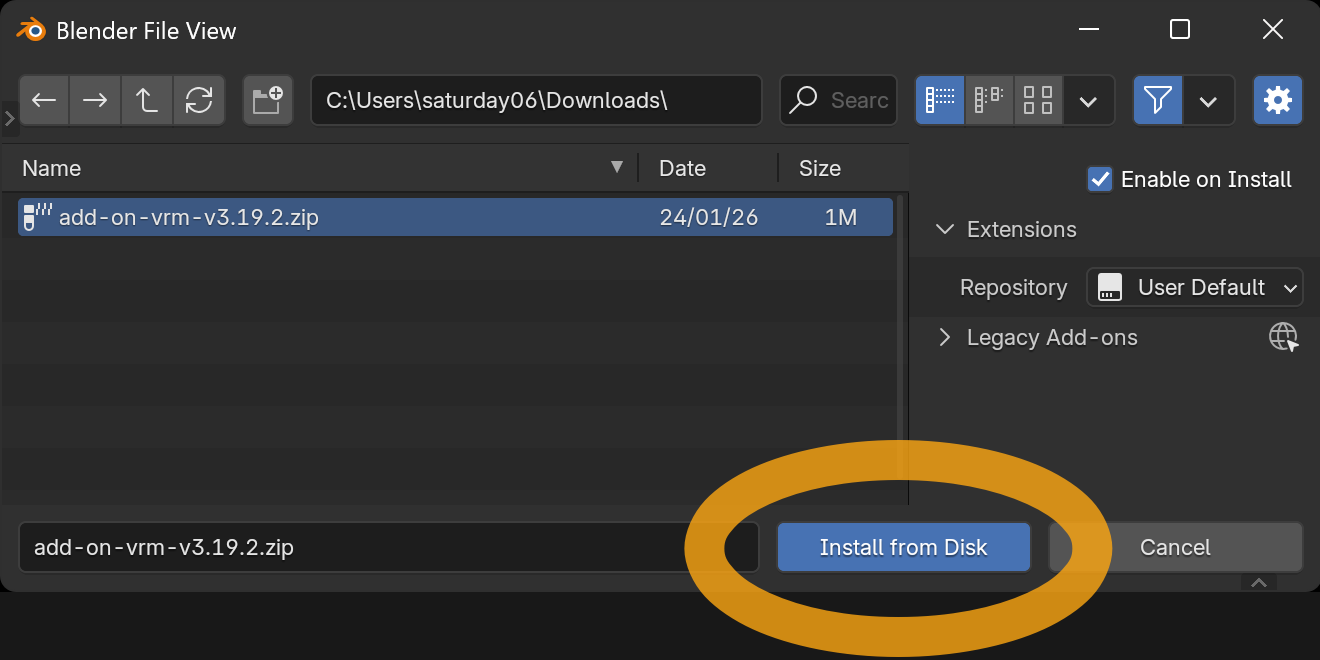
A file picker opens. Select the add-on file you downloaded earlier, confirm the filename ends with .zip, then click Install from Disk.
If VRM format is added to the list and its checkbox is on, installation is complete.
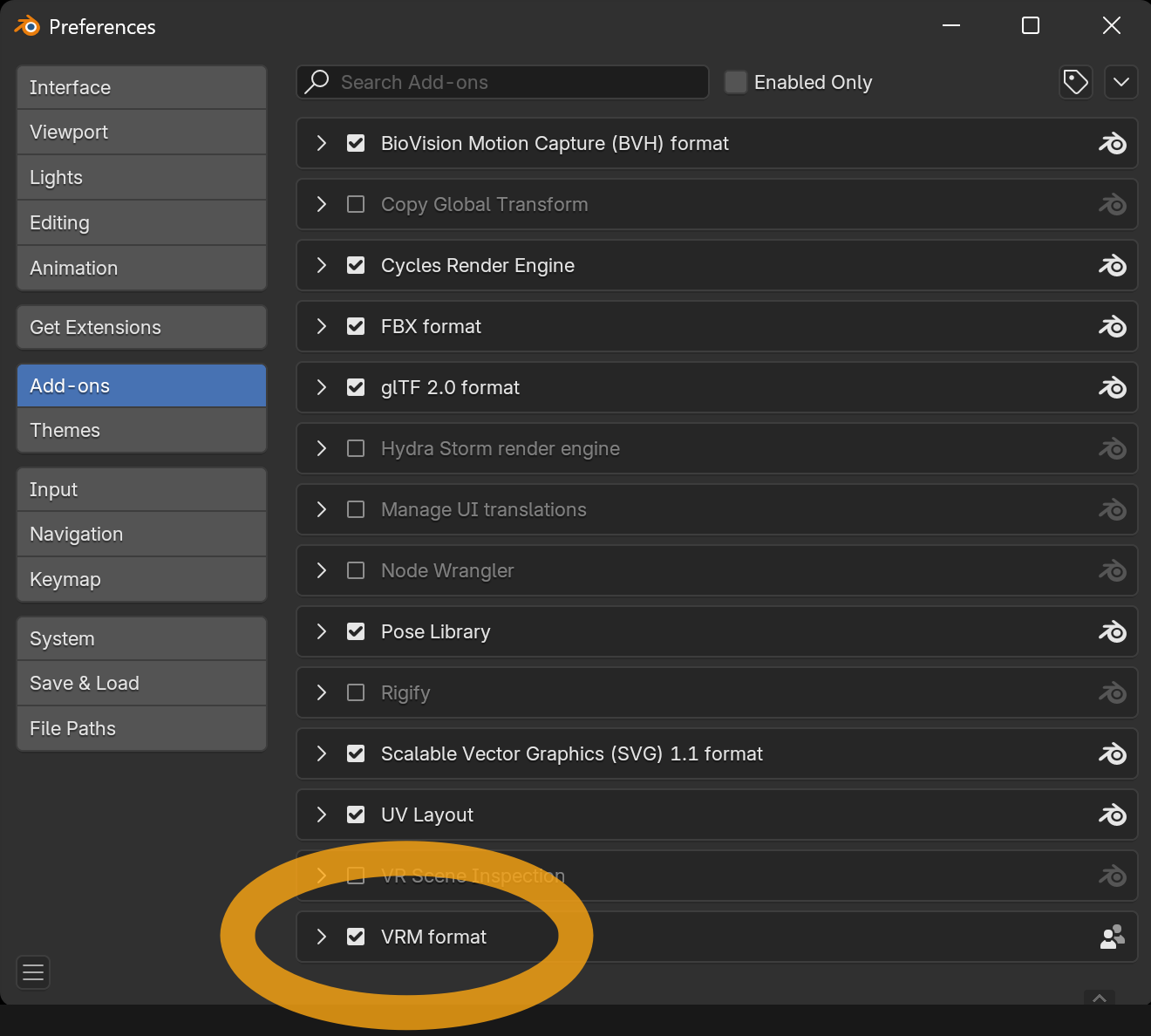
If the checkbox is off, turn it on manually.
If VRM format is not added to the list, confirm the following:
- The add-on file you downloaded is a ZIP file, but you did not unzip it.
- The selected add-on filename ends with
.zip.
Blender 2.93 to 4.1
Download latest add-on file from Download Latest Version (v3.26.3) Tue, Apr 7, 2026, UTC
TIP
The downloaded add-on file is a ZIP file, but please do not unzip it, as the unzipped data will not function as an add-on.
Start Blender and select menu Edit → Preferences.
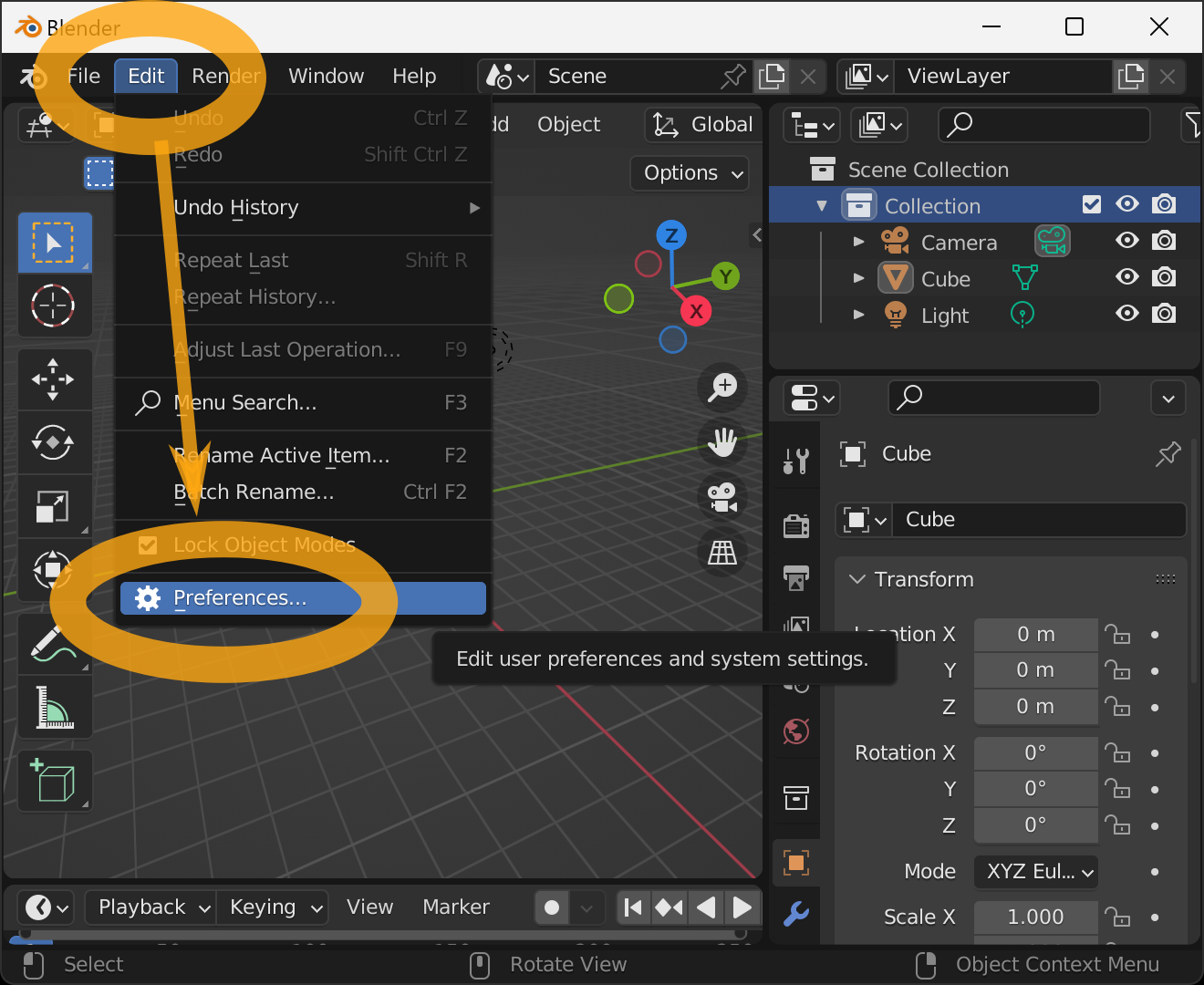
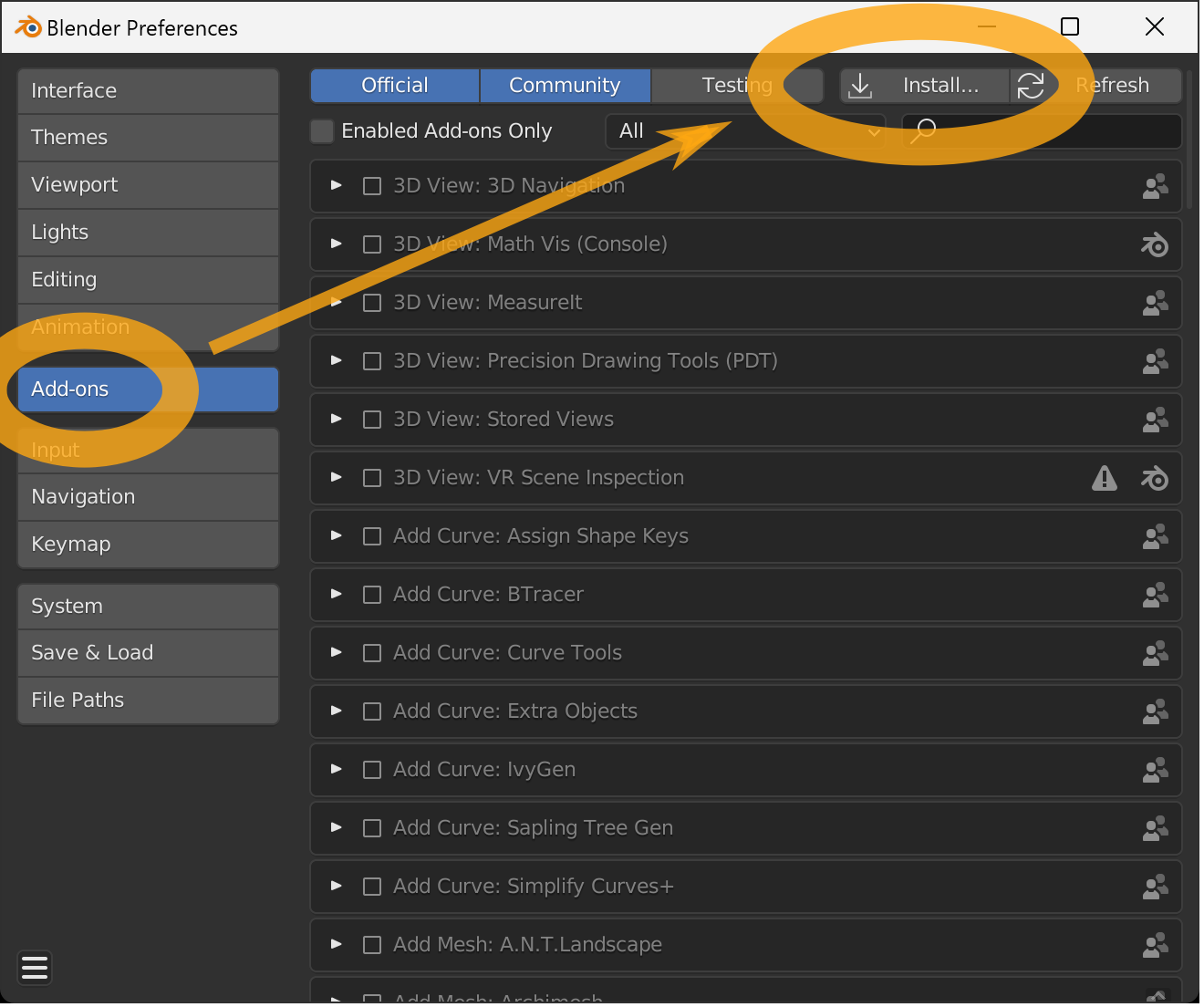
Select Add-ons from the left menu when the preferences screen, and then press the Install button in the upper right corner.
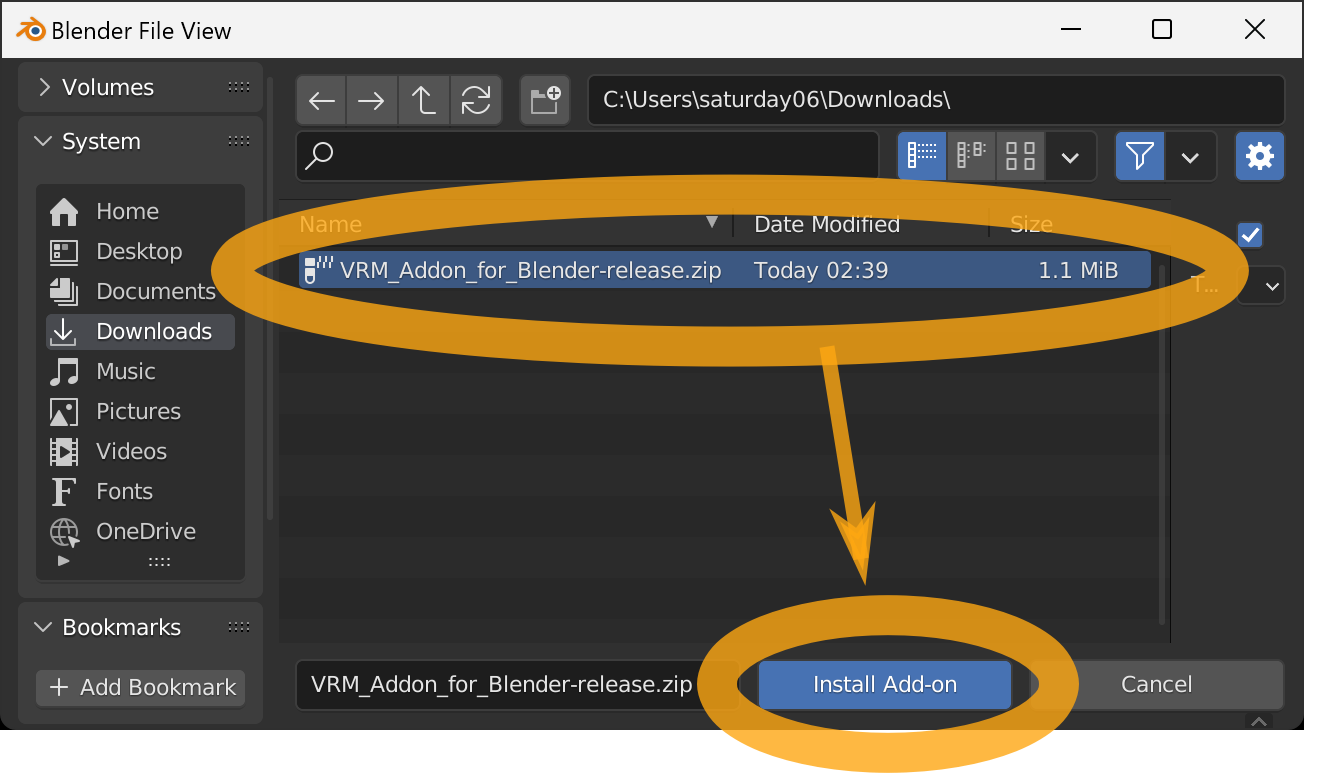
When the File View window appears, select the add-on file you just downloaded, make sure the filename ends with .zip, and press the Install Add-on button.
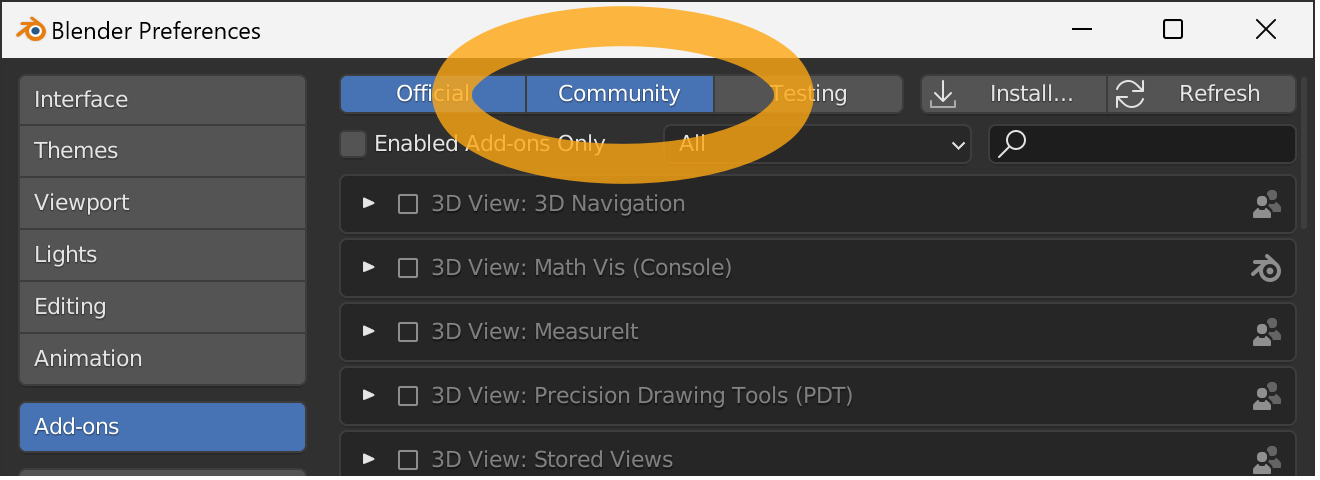
Make sure Community is enabled.
Find Import-Export: VRM format in the add-on list view.
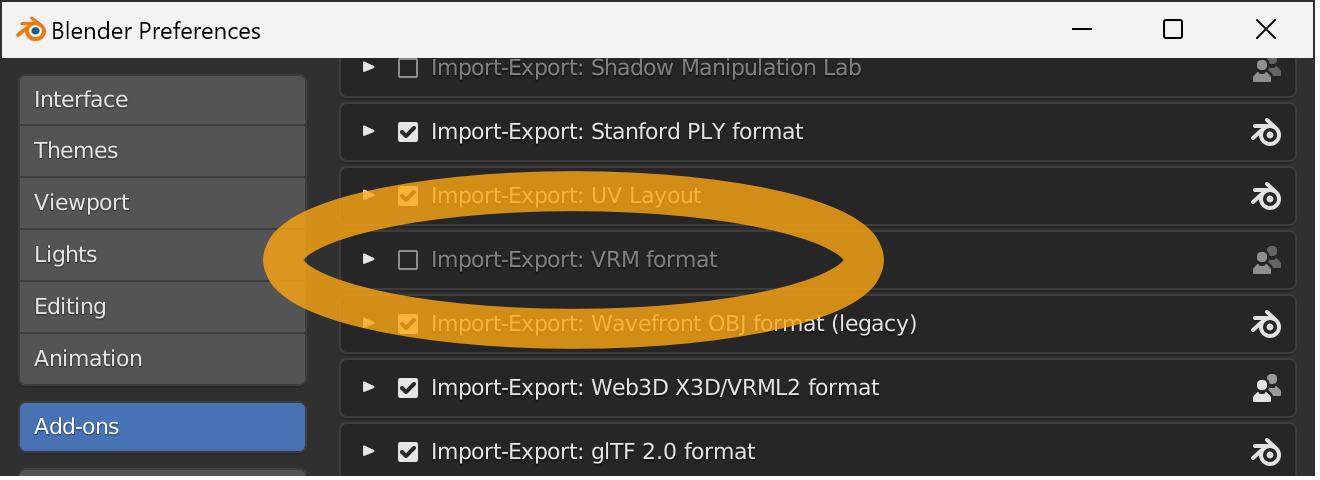
There is a search box in the upper right corner if there are too many items to find.
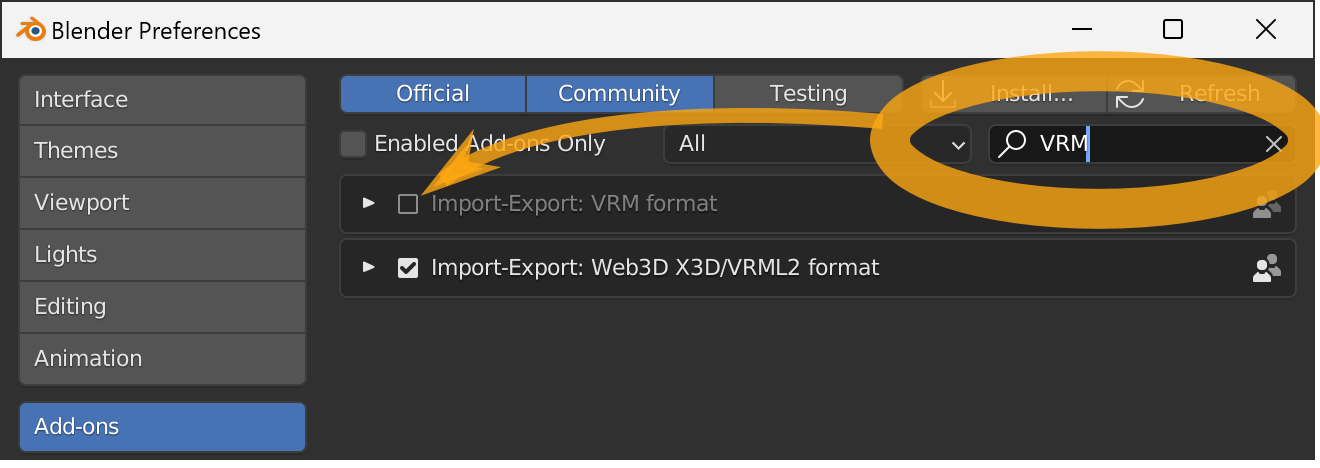
If you cannot find it, please make sure that all of the following conditions are met
- The add-on file you downloaded is a ZIP file, but you did not unzip it.
- The selected add-on filename ends with
.zip. Communityat the top of the window is enabled.
Press the checkbox to complete the installation of the add-on.